

What makes a WordPress plugin vulnerable?
A plugin is extra code that adds features to your site. Like any code, it can contain flaws, and the outdated software check looks at one common cause: old versions.
The WordPress hardening guide explains that once a flaw is fixed in a release, the details needed to exploit it are almost certainly public. So an old version is easier to abuse than a current one, as WordPress developer documentation describes.
How do I check if my plugin is vulnerable?
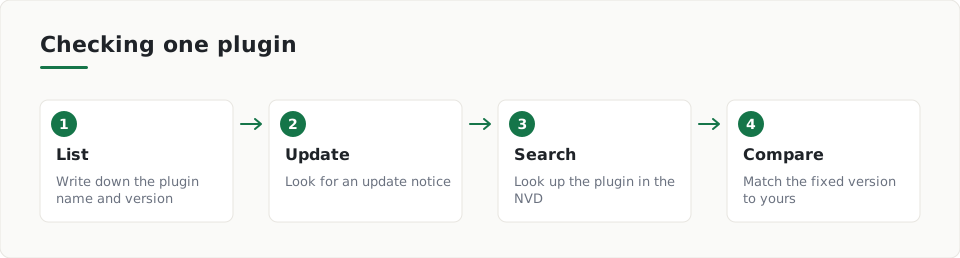
- Open Plugins in your WordPress admin and write down each plugin name and version.
- Look for update notices. WordPress shows a message in the admin screens when a new version is available, according to the WordPress update documentation.
- Search each plugin name in the National Vulnerability Database, a U.S. government list of known software flaws.
- Compare any flaw you find with your version number. Check which version fixed it.
- Note plugins that have not been updated by their author for a long time.
What signs point to a risky plugin?
OWASP says you are likely exposed if you do not know the versions of the components you use. The same applies if the software is unsupported or out of date, according to the OWASP Top 10 entry on vulnerable components.
- You cannot say which version of a plugin you run.
- The plugin is unmaintained by its author.
- An update is waiting and you have not installed it.
- A database entry lists a flaw that your version still has.
- You installed it from outside the WordPress.org repository or a well-known company.
The hardening guide advises getting plugins and themes only from the WordPress.org repository or well-known companies, because other sources may lead to issues. See the WordPress hardening guidance.
How do I fix a vulnerable plugin?
- Update the plugin from the Dashboard, under Updates.
- If there is no fix, replace the plugin with a maintained alternative.
- Delete plugins you do not use.
- Open your site and test the main pages after each change.
The WordPress upgrade guide advises updating plugins one by one and checking for warnings and errors. If a big error appears, you can try an older release from the plugin's Developer tab.
What if I cannot patch right away?
OWASP also mentions a virtual patch, which blocks an attack without changing the plugin's code. Consider it only when you truly cannot patch. It is a stopgap, so plan a real update or replacement.
Can I check my site from the outside?
ScanDefend checks the software it finds on a website against published vulnerability data.
You can see what a finding looks like in the sample report, or run the website security check on your own domain.
Key terms
- Plugin: A plugin is a piece of code that adds a feature to a WordPress site.
- Vulnerability: A vulnerability is a flaw in software that someone could misuse.
- NVD: The NVD is the U.S. government's database of known software flaws.
What to do
- List every plugin and its version.
- Install pending updates, one plugin at a time.
- Look up each plugin in the NVD.
- Delete plugins you no longer use.
- Replace plugins the author no longer maintains.
- Install plugins only from WordPress.org or well-known companies.
- Take a backup before each update.
Frequently asked questions
Where can I look up known plugin flaws?
The National Vulnerability Database lists known software flaws, including product names and impact metrics. Search for the plugin name and compare your version.
Should I delete plugins I do not use?
Yes. An unused plugin still needs updates, so removing it gives you less to keep track of.
Do WordPress updates happen automatically?
Since WordPress 3.7, most sites can apply minor and security updates in the background. Major releases still need a manual click, per the WordPress update documentation.
How ScanDefend fits in
ScanDefend checks the software it finds on a website against published vulnerability data.
Want to see what a finished report looks like? View the sample report.